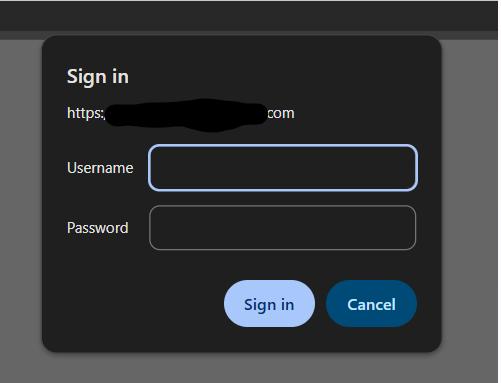
If you’re running a website or a tool like phpMyAdmin on an AWS EC2 Linux server, it’s a good idea to add extra security. One simple and effective way is to use Basic Authentication with Apache.
In this guide, you’ll learn how to protect a specific URL (like /phpmyadmin) with a username and password, and also avoid a common mistake people make when using HTTPS.
Why Use Basic Auth?
Basic Authentication creates a simple login prompt that appears before anyone can access your URL.
- Easy to set up
- Requires no changes to your app
- Perfect for admin panels like phpMyAdmin and dashboards
Example Setup
- Domain: subdomain.yourdomain.com
- Directory: /var/www/html/subdomain
- Username: admin
- Server: AWS EC2 (Linux + Apache)
Step 1: Install Apache & Tools
Ubuntu/Debian:
sudo apt update
sudo apt install apache2 apache2-utils -y
Amazon Linux / RHEL:
sudo yum install httpd httpd-tools -y
sudo systemctl start httpd
sudo systemctl enable httpd
Step 2: Create Username & Password
sudo htpasswd -c /etc/httpd/.htpasswd admin
You’ll be prompted to set a password:
New password: ********
Re-type new password: ********
Adding password for user admin
Step 3: Prepare Protected Directory
sudo mkdir -p /var/www/html/subdomain
(Optional test file)
echo "Protected content" | sudo vi /var/www/html/subdomain/index.html
Step 4: Configure Apache
If your site redirects from HTTP to HTTPS, make sure to set up authentication in the HTTPS configuration, not only in HTTP.
Ubuntu Config:
sudo vi /etc/apache2/sites-available/000-default.conf
Add inside <VirtualHost *:80>:
<Directory "/var/www/html/subdomain">
    AuthType Basic
    AuthName "Restricted Area"
    AuthUserFile /etc/apache2/.htpasswd
    Require valid-user
</Directory>
Amazon Linux Config:
sudo nano /etc/httpd/conf/httpd.conf
Add inside <VirtualHost *:80>:
<Directory "/var/www/html/subdomain">
    AuthType Basic
    AuthName "Restricted Area"
    AuthUserFile /etc/httpd/.htpasswd
    Require valid-user
</Directory>
Step 5. Enable auth module (Ubuntu Only)
sudo a2enmod auth_basic
Step 6: Restart Apache
Ubuntu:
sudo systemctl restart apache2
Amazon Linux:
sudo systemctl restart httpd
Step 7: Test in browser
Open http://subdomain.yourdomain.com
You will see a login popup