PART 1: Bitbucket API Token
A Bitbucket API token (App Password) is used to securely authenticate Git operations without exposing your main account password. Follow the steps below to create your token.
Step 1: Log in to Bitbucket using your login credentials.
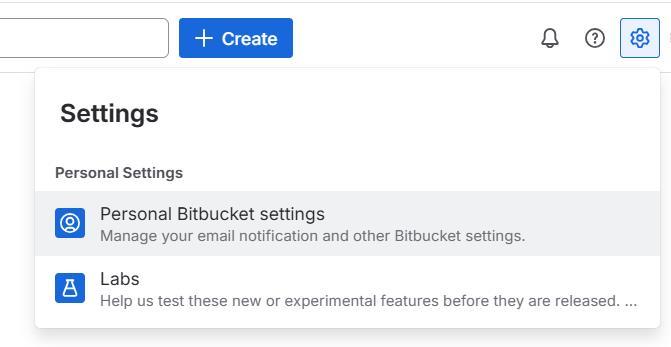
Step 2: Click the gear icon in the top-right corner, then select Personal Bitbucket settings, or go directly to https://bitbucket.org/account/settings/.
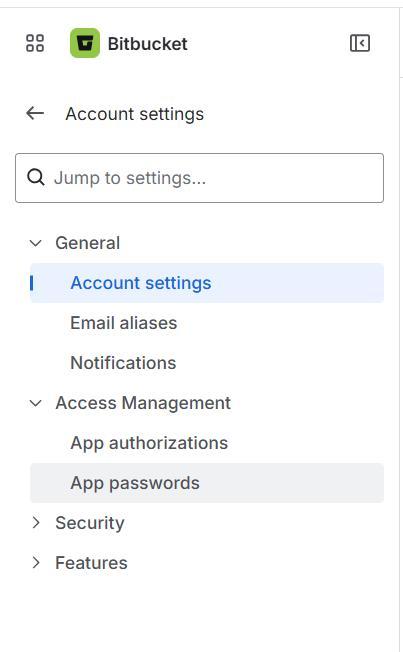
Step 3: In the left sidebar, click App passwords, or open https://bitbucket.org/account/settings/app-passwords/ directly.
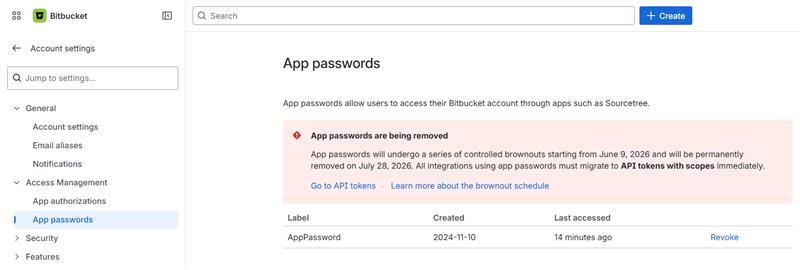
Step 4: Click Go to API tokens, or directly open https://id.atlassian.com/manage-profile/security/api-tokens.
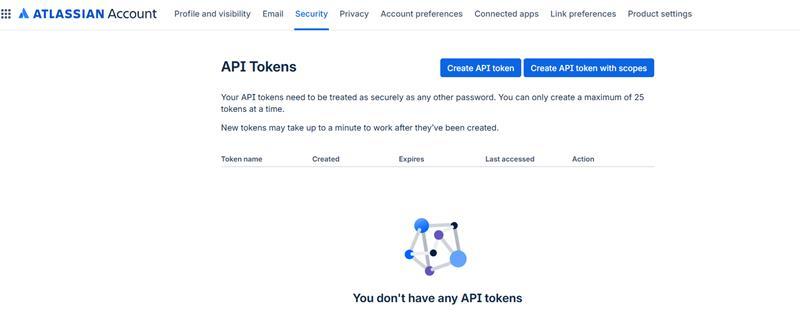
Step 5: Click Create API token with scopes.
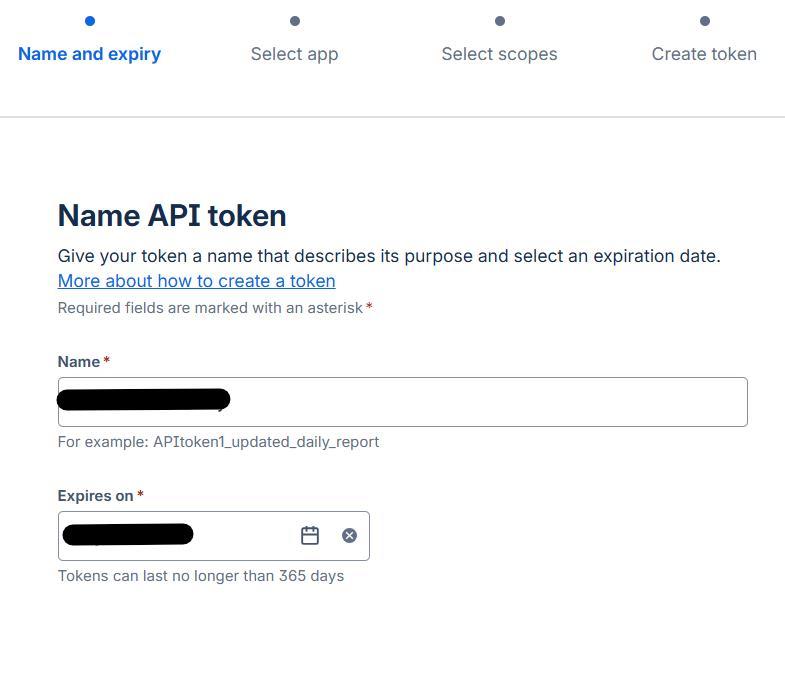
Step 6: Enter a name and select an expiry date, then click Next.
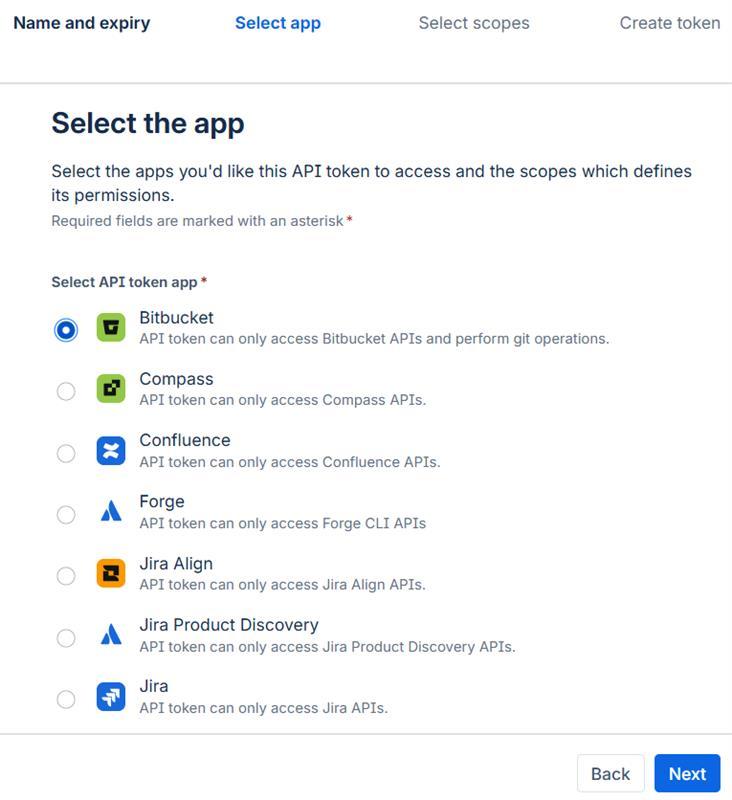
Step 7: Select the required apps, then click Next.
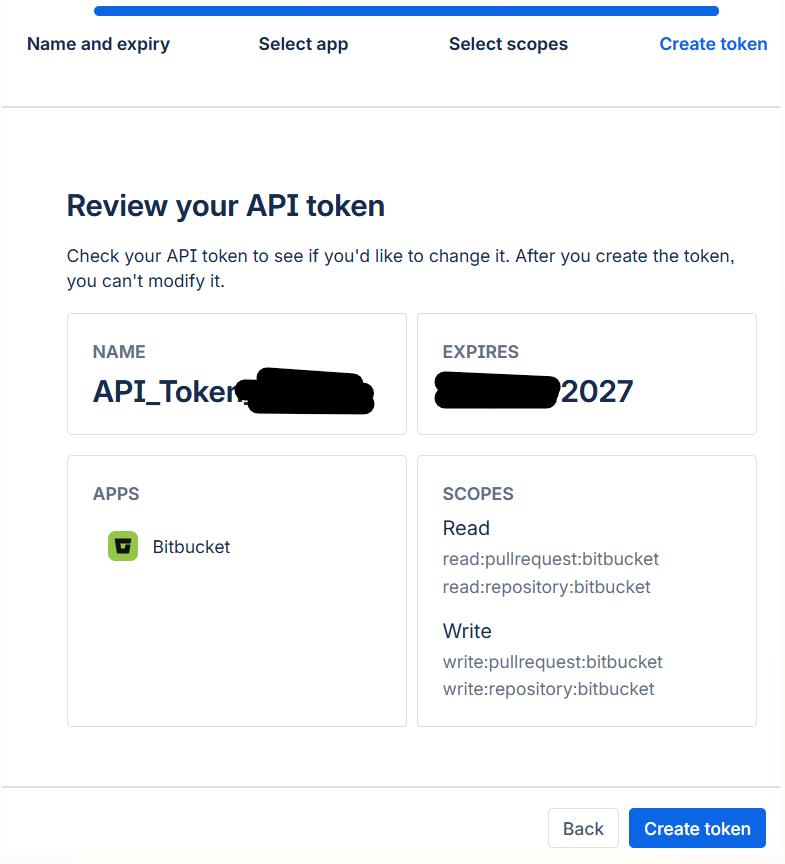
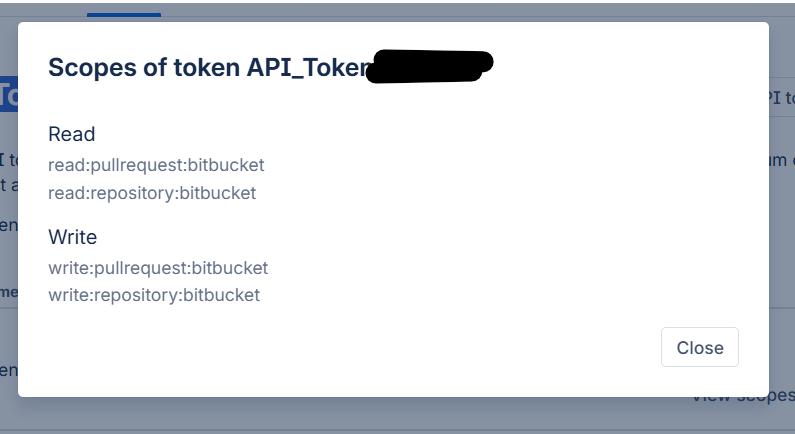
Step 8: Select the required Bitbucket scopes and click Next.
- read:pullrequest:bitbucket – View your pull requests
- write:pullrequest:bitbucket – Modify your pull requests
- read:repository:bitbucket – View your repositories
- write:repository:bitbucket – Modify your repositories
Step 9: Review the details, then click Create token.
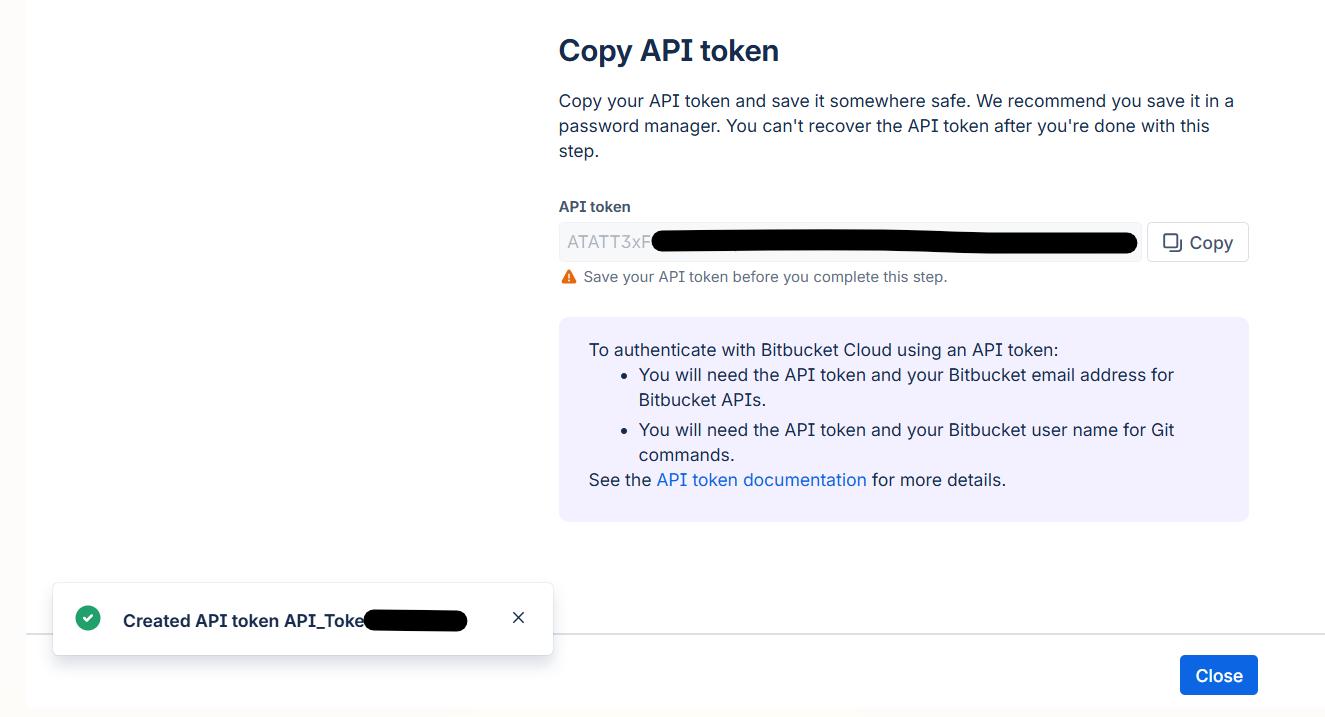
Step 10: Copy the token and store it securely for future use, then click Close.
Step 11: The newly created token will now be visible on the API tokens page.
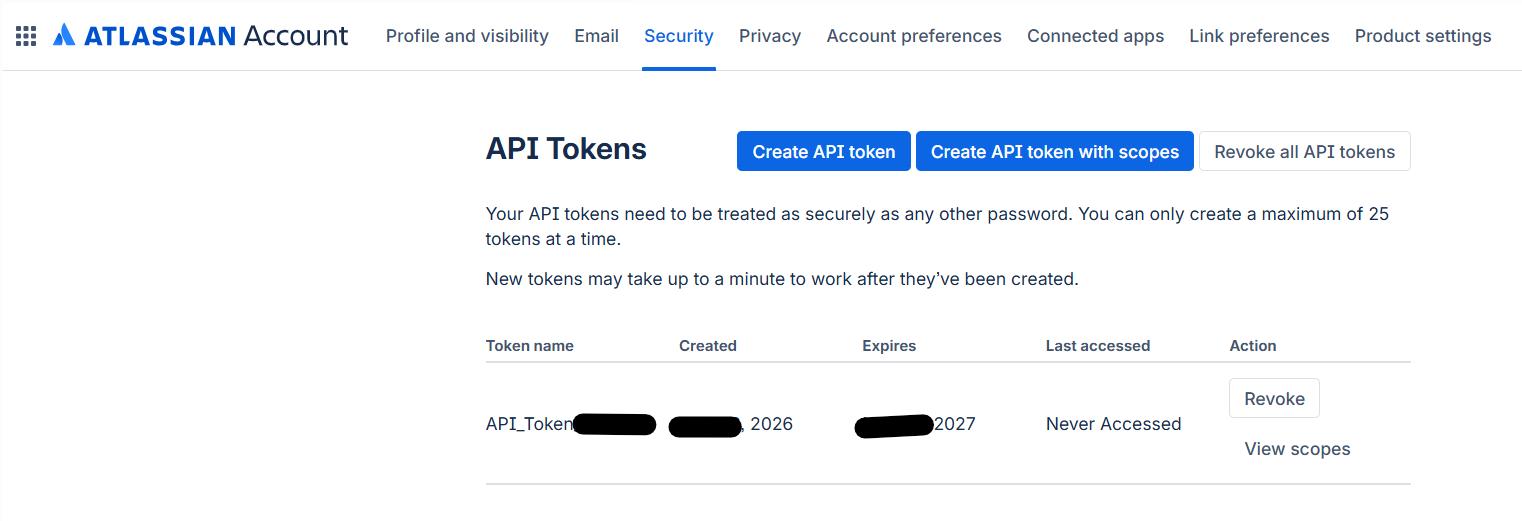
Step 12: Click View scopes to review and verify the selected permissions.
PART 2: Set Up Bitbucket API Token on AWS EC2
Step 1: Connect to the EC2 instance via SSH
$ ssh ec2-user@<EC2-IP> # Replace <EC2-IP> with your actual EC2 instance public IP address
Step 2: Change to the Project Directory
$ cd /path/to/your/repo
Step 3: Verify Remote URL Uses HTTPS (PAT is not supported with SSH)
$ sudo git remote -v
You should see output like:
https://bitbucket.yourcompany.com/scm/project/repo.git
If it is not using HTTPS, update the remote URL with:
$ git remote set-url origin https://bitbucket.yourcompany.com/scm/project/repo.git
Step 4: Configure Git Credential Storage (Important for EC2)
Since you are using sudo, credentials need to be configured at the system level for root access.
$ sudo git config --system credential.helper store
Step 5: Pull Repository Using API Token (PAT)
$ sudo git pull origin master
When prompted, enter:
- Username: your Bitbucket username
- Password: paste your API Token (PAT)
Note: The token will not be visible while pasting or typing—this is expected behavior.
Step 6: Verify the Setup
$ sudo git pull
If configured correctly, it will pull the latest changes without prompting for credentials.
Step 7: Verify Where the Token is Stored
The credentials are saved in:
/root/.git-credentials
This file can only be accessed by the root user.
One-line check:
sudo cat /root/.git-credentials
You should see an entry like:
https://projects-admin@bitbucket.yourcompany.com
Note: The token itself may not be displayed, which is normal and expected behavior.
If credentials are not configured correctly
Fix: Generate a new API token (PAT) with the appropriate permission scopes.
Step 1: Remove the Existing Token
Go to Bitbucket → API Tokens and delete the token you are currently using.
Step 2: Generate a New API Token with Proper Scopes
Create a fresh API token in Bitbucket and ensure the correct permissions (scopes) are selected.
Step 3: Remove Cached Incorrect Credentials on EC2 (Important)
Since Git has stored the incorrect token, you need to clear it first.
sudo rm -f /root/.git-credentials
Verify and reset credential helper
sudo git config --system --unset credential.helper
sudo git config --system credential.helper store
Step 4: Pull Again Using the New Token
sudo git pull origin master
When prompted, provide:
- Username:
projects-admin - Password: Enter the new API token (ensure it has the required repository read permissions)
Step 5: Verify the Update
If successful, you should see output similar to:
Updating ...